Assignment 3
Learning Objectives
- Migrate in-memory CRUD to SQLite-backed persistence
- Refactor state management using Context + Reducer patterns
- Integrate third-party API data with local caching
- Handle async effects with proper loading and error states
- Test offline behavior and display meaningful error messages
- 💯 Worth: 9%
- 📅 Due: See due date on Moodle
- 🚫 Penalty: Late submissions lose 10% per day up to 2 days. Nothing is accepted after 2 days.
🔍 Context
Section titled “🔍 Context”In Assignment 2, you built navigation architecture and in-memory CRUD operations. This assignment builds on that foundation by introducing persistent storage with SQLite, professional state management patterns using Context and Reducers (as practiced in the 3.3 exercises), and integration with third-party APIs that cache data locally to minimize network requests.
You’re going to fall into one of two camps:
- You already have an API in mind and designed your app around the data that the API returns. For example, a music player app that queries the Spotify API to store and display music data.
- Your app is more local-first and the API will be complementary (perhaps not as related) to their app. For example, a local todo app that also displays the current weather via a weather API.
Both approaches require SQLite persistence, API integration with caching, and proper error handling.
🔖 Part 0: Tag & Branch
Section titled “🔖 Part 0: Tag & Branch”Protect your Assignment 2 work before making architectural changes:
-
Tag your Assignment 2 final state:
Terminal window git tag assignment-2-finalgit push origin assignment-2-finalThis creates a permanent bookmark you can return to if needed:
git checkout assignment-2-final -
Create a new branch for Assignment 3:
Terminal window git checkout -b assignment-3All your A3 work will happen on this branch. You can always go back to main if something breaks.
-
Push the new branch:
Terminal window git push -u origin assignment-3
📐 Part 1: Planning
Section titled “📐 Part 1: Planning”Before coding, update your README.md on your new assignment-3 branch.
1. Data Architecture Plan
Section titled “1. Data Architecture Plan”Explain your data model in detail. This should cover:
SQLite Schema
Section titled “SQLite Schema”Define your table structure(s):
-- Example for Pokédex appCREATE TABLE IF NOT EXISTS pokemon ( id INTEGER PRIMARY KEY, name TEXT NOT NULL, sprite_url TEXT, types TEXT, -- Needs a many-to-many linking table is_favorite INTEGER DEFAULT 0, cached_at TEXT DEFAULT CURRENT_TIMESTAMP -- YYYY-MM-DD HH:MM:SS);
CREATE TABLE IF NOT EXISTS user_notes ( id INTEGER PRIMARY KEY AUTOINCREMENT, pokemon_id INTEGER NOT NULL, note TEXT NOT NULL, created_at INTEGER NOT NULL, FOREIGN KEY (pokemon_id) REFERENCES pokemon(id));-- Example for Todo app with weather widgetCREATE TABLE IF NOT EXISTS todos ( id INTEGER PRIMARY KEY AUTOINCREMENT, title TEXT NOT NULL, description TEXT, priority INTEGER DEFAULT 0, completed INTEGER DEFAULT 0, created_at TEXT DEFAULT CURRENT_TIMESTAMP -- YYYY-MM-DD HH:MM:SS);
CREATE TABLE IF NOT EXISTS weather_cache ( id INTEGER PRIMARY KEY, city TEXT NOT NULL, temperature REAL, condition TEXT, cached_at TEXT DEFAULT CURRENT_TIMESTAMP -- YYYY-MM-DD HH:MM:SS);Deeper Dive: Dates in SQLite
SQLite does not have a storage class set aside for storing dates and/or times. Instead, the built-in Date And Time Functions of SQLite are capable of storing dates and times as TEXT, REAL, or INTEGER values:
- TEXT as ISO8601 strings (“YYYY-MM-DD HH:MM:SS.SSS”).
- REAL as Julian day numbers, the number of days since noon in Greenwich on November 24, 4714 B.C. according to the proleptic Gregorian calendar.
- INTEGER as Unix Time, the number of seconds since 1970-01-01 00:00:00 UTC.
Applications can choose to store dates and times in any of these formats and freely convert between formats using the built-in date and time functions.
At minimum, you’re going to need a table for your “main” entity, and a table for the API data you’re going to be cacheing.
API Integration Plan
Section titled “API Integration Plan”- What URL(s) will you call?
- What specific data are you requesting?
- How long is cached data valid? (e.g., 10 minutes, 1 hour, forever)
- When do you re-fetch from the API?
- What can users add/edit/delete locally?
- If your API requires a key: Where to get it, what
.envvariable name to use, and any usage limits
| Document | API-first Example | Local-first Example |
|---|---|---|
| API endpoint(s) | PokeAPI: https://pokeapi.co/api/v2/pokemon/{id} | OpenWeatherMap: https://api.openweathermap.org/data/2.5/weather |
| Data fetched | Pokemon name, sprite URL, types, abilities | Current temperature and weather condition for user’s city |
| Cache strategy | Cache for 24 hours, re-fetch if data is older | Cache for 10 minutes (weather changes frequently) |
| Update logic | Fetch on first view, check cache age on subsequent views | Fetch on app launch if cache is stale, manual refresh button |
| User-created data | Users can favorite Pokemon, add personal notes, create custom Pokemon entries | Full todo CRUD (title, description, priority, due date, completed status) |
2. UI Sketches
Section titled “2. UI Sketches”Update your state diagram from A2 and… delete it. I realized after A2 that this was redundant, and your UI sketches are much better to give me an idea of your vision. So, update your sketches from A2 to be a kind-of state diagram:
- User interactions from screen to screen
- Which data comes from SQLite vs API
- Where do loading spinners appear?
- What message appears when API fails?
- How does UI look with cached data but no network?
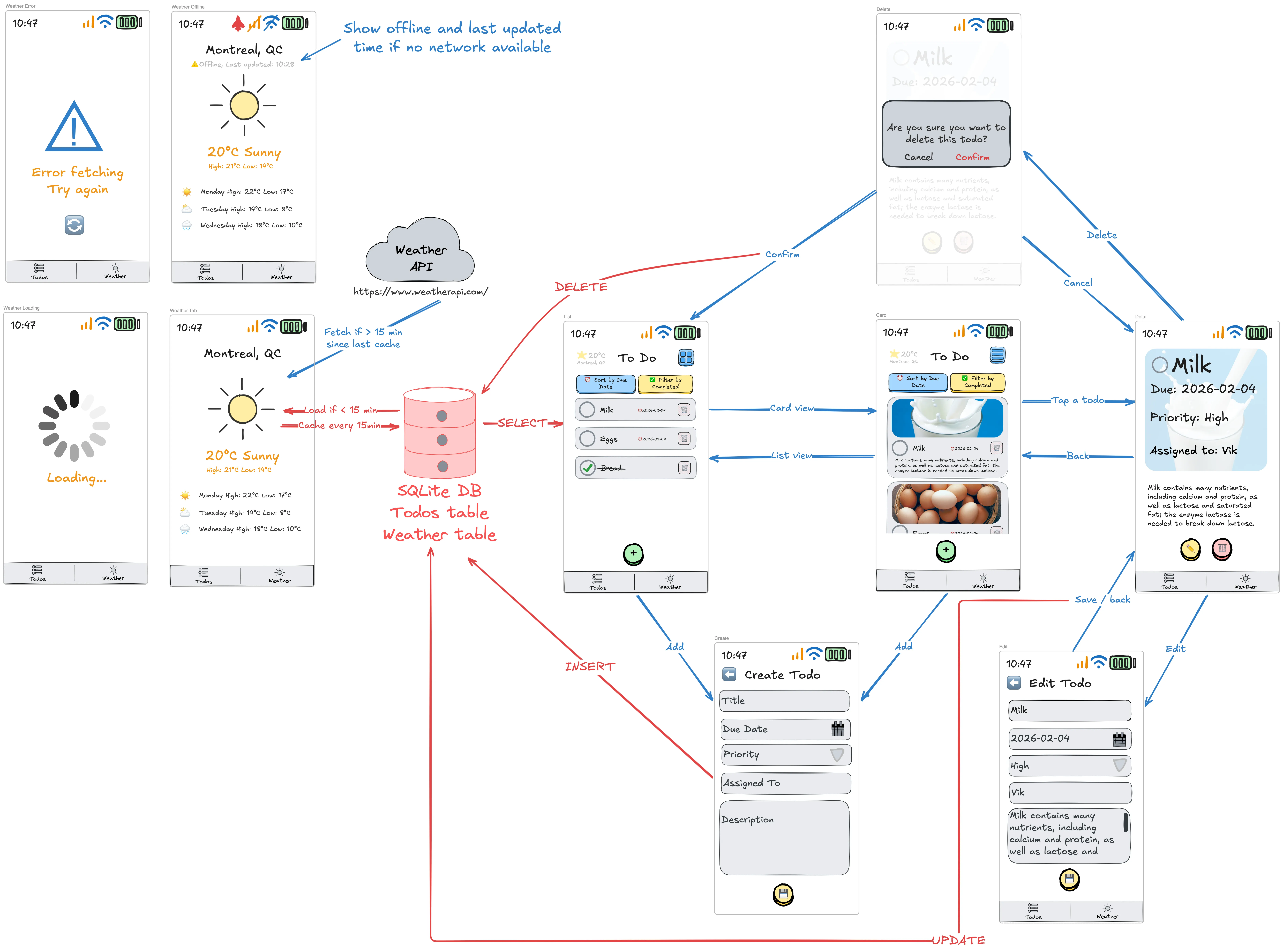
Excalidraw link to this diagram. If you’re already working in Excalidraw, make sure to open in a private/incognito window so you don’t overwrite your work.
3. Message Me
Section titled “3. Message Me”You don’t have to wait for me to start implementing, but just be aware I may ask you to change things in the README which will affect your implementation. Detailed implementation specs coming soon!
🛠️ Part 2: Implementation
Section titled “🛠️ Part 2: Implementation”-
Make sure you’re on your
assignment-3branch:Terminal window git branch # Should show * assignment-3 -
Install expo-sqlite:
Terminal window bunx expo install expo-sqlite -
Install Drizzle Studio:
Terminal window bun i expo-drizzle-studio-pluginThis will allow you to look at the DB in your browser.
Add
useDrizzleStudio(db)at the top of your root component (the one wrapped by<SQLiteProvider>):import { useSQLiteContext } from 'expo-sqlite';import { useDrizzleStudio } from 'expo-drizzle-studio-plugin';function Container() {const db = useSQLiteContext();useDrizzleStudio(db);return (// Your app content);} -
Create database initialization:
-
Add
src/db/init.tswith table creationasync function initDb(db: SQLiteDatabase) {await db.execAsync(`PRAGMA journal_mode = 'wal';CREATE TABLE IF NOT EXISTS table_name (...);`);} -
Make sure to wrap your app’s root component in
<SQLiteProvider> -
After you
bun run startand open the emulators, pressshift + min the terminal to present the Dev Tools menu and chooseexpo-drizzle-studio-pluginfrom the list. Drizzle Studio will open in a new web browser tab. You can use this to debug the database.
-
File Structure
Section titled “File Structure”Directorysrc/
Directoryapp/ (existing Expo Router structure)
- …
Directorycomponents/ (existing UI components)
- …
Directorydb/
- init.ts (table creation, passed to SQLiteProvider)
- repository.ts (SQL CRUD + cache functions, error filter)
Directorystate/
- reducer.ts (action types + reducer for main entity)
- context.tsx (provider + custom hook for main entity)
- apiReducer.ts (optional: separate reducer for API data)
- apiContext.tsx (optional: separate context for API data)
Directoryservices/
- api.ts (fetch functions with error handling)
Directorytypes/ (TypeScript interfaces)
- …
- .devlog.md
- .env (API keys)
- .gitignore
- package.json
- README.md
Repository (5 points)
Section titled “Repository (5 points)”- Add
src/db/repository.tswith SQL functions - Add error filter at top of repository file:
/** * Detects SQLite errors caused by Fast Refresh lifecycle races. * * During Fast Refresh (dev only), React remounts <SQLiteProvider> which closes * the old native DB handle. However, in-flight async queries from old useEffect * closures may still reference that closed handle, causing "prepareAsync rejected" * errors. * * This function filters those known refresh-time errors so they don't clutter logs. * Real database errors will still surface normally. */export function isClosedResourceSqliteError(error: unknown) { const message = error instanceof Error ? error.message : String(error); return ( message.includes('prepareAsync') && (message.includes('Access to closed resource') || message.includes('API misuse')) );}Use this filter in your useEffect error handlers for all SQLite operations:
try { // DB operations} catch (e) { if (!isClosedResourceSqliteError(e)) { console.error('DB Error:', e); }}Test each function in isolation, use Drizzle Studio to verify if SQL operations are being executed properly.
Requirements:
- All CRUD operations use SQLite (no
useStatefor main data) SQLiteProviderwraps app with properonInit- Tables created with
CREATE TABLE IF NOT EXISTS - Repository layer contains all SQL queries
- Data persists across app restarts
| Points | Criteria |
|---|---|
| 5 | All CRUD operations fully migrated to SQLite. Data persists correctly across app restarts. Repository layer is clean and follows patterns from 3.3. |
| 4 | SQLite CRUD mostly working but has minor issues (e.g., one operation not fully migrated, or persistence works but has edge cases). |
| 3 | SQLite implemented but significant issues (e.g., data doesn’t persist reliably, repository layer mixed with UI logic, or missing proper types). |
| 2 | Partial SQLite implementation (e.g., only Read implemented with SQL, or Create/Update/Delete still using in-memory state). |
| 1 | SQLite setup exists but CRUD operations barely functional or mostly in-memory. |
| 0 | No SQLite implementation or completely non-functional. |
Reducer + Context (4 points)
Section titled “Reducer + Context (4 points)”- Add
src/state/reducer.tswith action types (loadStart, loadSuccess, loadError, addSuccess, updateSuccess, removeSuccess) - Add
src/state/context.tsxwith provider - Create a custom hook (e.g.,
useYourEntity()) to access context operations from any component - Wire up initial load in
useEffectthat dispatchesloadStart, calls repository, then dispatchesloadSuccess - Move your current CRUD logic into the reducer
- Update context functions to call repository FIRST, then dispatch reducer actions, for example:
add(): CalladdItem(db, data), get new ID from database, construct item object using new ID, dispatchaddSuccessupdate(): CallupdateItem(db, id, changes), dispatchupdateSuccesswith updated itemremove(): CalldeleteItem(db, id), dispatchremoveSuccesswith id
- See Exercise 3.3.4 for the complete pattern
- Test thoroughly after each operation type
Requirements:
- Reducer handles at least 6 action types (
loadStart,loadSuccess,loadError,addSuccess,updateSuccess,removeSuccess) - Context provider orchestrates async operations and dispatches actions
- Custom hook (
useTodos(),useItems(), etc.) provides access to state and actions - Immutable state updates in reducer (
.map(),.filter(),[...array, item]) - No direct state mutation
| Points | Criteria |
|---|---|
| 4 | Reducer + context fully implemented with proper separation of concerns. All actions use immutable updates. Custom hook works correctly. |
| 3 | Context/reducer mostly correct but has issues (e.g., missing some action types, or occasional direct mutation, or context setup has minor flaws). |
| 2 | Context/reducer partially implemented (e.g., some operations still use basic useState, or reducer logic is incomplete). |
| 1 | Minimal context/reducer implementation that barely functions or doesn’t follow patterns from 3.3 exercises. |
| 0 | No context/reducer pattern or completely non-functional. |
API Integration (5 points)
Section titled “API Integration (5 points)”Your API integration should follow the same context + reducer pattern as your main entity.
API Key Management
Section titled “API Key Management”If your API requires a key, create a .env file in your project root:
EXPO_PUBLIC_WEATHER_API_KEY=your_api_key_hereAccess it in your code using process.env:
const API_KEY = process.env.EXPO_PUBLIC_WEATHER_API_KEY;API Service Layer
Section titled “API Service Layer”Create src/services/api.ts with pure fetch functions:
// 1. Define your data interfaceexport interface WeatherData { // Properties matching API response structure}
// 2. Create fetch functionexport async function fetchWeather(city: string): Promise<WeatherData> { // Get API key from process.env // Construct URL with query parameters // fetch() the URL // Check response.ok, throw error if failed // Parse JSON response // Return mapped data matching your interface}Cache Logic in Repository
Section titled “Cache Logic in Repository”Add functions to check cache age and fetch from SQLite:
// TTL = Time To Live (how long cached data remains valid before needing refresh)// Weather changes frequently, so 10 minutes is reasonable// Static data (ex. Pokemon details) could use 24 hours or longerconst CACHE_TTL_MS = 10 * 60 * 1000; // 10 minutes in milliseconds
export async function getCachedData( db: SQLiteDatabase, key: string): Promise<YourData | null> { // Query cache table with key // If no row found, return null // Calculate age: Date.now() - row.cached_at // If age > CACHE_TTL_MS, return null // Otherwise return the cached data}
export async function cacheData( db: SQLiteDatabase, data: YourData): Promise<void> { // INSERT OR REPLACE into cache table // Include all data fields + Date.now() as cached_at}API Context + Reducer
Section titled “API Context + Reducer”Create a separate context for your API data (or extend your existing reducer):
// 1. Define action types (fetchStart, fetchSuccess, fetchError)type ApiAction = // discriminated union
// 2. Define state shape (data, loading, error)interface ApiState { // data: YourData | null // loading: boolean // error: string | null}
// 3. Implement reducerfunction apiReducer(state: ApiState, action: ApiAction): ApiState { // switch (action.type) // fetchStart: set loading true, clear error // fetchSuccess: set data, loading false // fetchError: set error, loading false}Wire Up in Context Provider
Section titled “Wire Up in Context Provider”Your context should check cache first, then fetch if needed:
async function refreshData() { // Dispatch fetchStart action
try { // 1. Check cache first: getCachedData(db, key) // 2. If cache hit, dispatch fetchSuccess with cached data, return // 3. Cache miss/expired: call API fetch function // 4. Save fresh data to cache: cacheData(db, fresh) // 5. Dispatch fetchSuccess with fresh data } catch (e) { // Extract error message // Dispatch fetchError with message }}Custom Hook
Section titled “Custom Hook”Create useYourData() (renamed to your entity’s name) so any component can access API data:
export function useYourData() { // Get context with useContext(YourContext) // Throw error if context is null (not wrapped in provider) // Return context}Call on App Load
Section titled “Call on App Load”Trigger the API fetch in your root component’s useEffect:
function YourScreen() { const { data, loading, error, refreshData } = useYourData();
useEffect(() => { // Call refresh function to load from cache or API }, []);
return ( <View> {/* Render loading, error, and data states */} {/* See Exercise 3.3.4 for loading/error pattern */} </View> );}Requirements:
- Valid API endpoint with working fetch calls
- API data cached in SQLite (not just stored in
useState) - Cache invalidation logic (check age before re-fetching)
- Avoid redundant API calls (check cache first)
- For API-first apps: Users can still create custom local entries
- For local-first apps: API data enhances the app (weather, quotes, etc.)
| Points | Criteria |
|---|---|
| 5 | API integration fully working with proper caching in SQLite. Cache invalidation logic prevents redundant calls. User-created data requirement met. |
| 4 | API + caching mostly working but has minor issues (e.g., cache invalidation not perfect, or occasional redundant calls). |
| 3 | API integration works but caching has significant issues (e.g., data not stored in SQLite, or always re-fetches even when cache is valid). |
| 2 | Partial API integration (e.g., fetches data but doesn’t cache, or caches but doesn’t check before re-fetching). |
| 1 | Minimal API usage (e.g., fetch works once but no caching or error handling). |
| 0 | No API integration or completely non-functional. |
Error Handling + Offline Behavior (3 points)
Section titled “Error Handling + Offline Behavior (3 points)”- Loading indicators during async operations (spinner, skeleton, etc.)
- Error messages displayed when API calls fail
- Try/catch blocks around async operations
- Turn off WiFi/cellular in emulator
- Verify cached data still displays when network unavailable
- Verify error messages appear when appropriate
- No silent failures (all errors visible to user)
Testing:
- Turn off WiFi/cellular in emulator before launching app
- Turn off WiFi/cellular after app has loaded with cached data
- Use invalid API endpoint/key to trigger 404/401 errors
| Points | Criteria |
|---|---|
| 3 | Comprehensive error handling. Loading states visible during operations. Offline behavior tested and works correctly (shows cached data or clear error message). |
| 2 | Error handling mostly working but incomplete (e.g., some errors not caught, or offline mode works but error messages are unclear/missing). |
| 1 | Minimal error handling (e.g., try/catch exists but errors not displayed to user, or offline mode not tested). |
| 0 | No error handling or app crashes on errors/offline. |
Code Quality (3 points)
Section titled “Code Quality (3 points)”Code should be clean, well-organized, and follow TypeScript best practices.
- All TypeScript types defined (no
anyexcept for explicitly untyped libraries) - Meaningful variable/function names (
getUserTodos, notgetData) - Comments explain complex logic (SQL queries, reducer cases, cache logic)
- No console errors or warnings in terminal/console
- Consistent code formatting (indentation, spacing, naming conventions)
- Proper file organization (repository, state, services separated)
.devlog.mddocuments major decisions and challenges
| Points | Criteria |
|---|---|
| 3 | Excellent code quality. All types defined, meaningful names, well-organized files, no console errors, comprehensive devlog. |
| 2 | Good code quality with minor issues (e.g., a few any types, some unclear names, or minor console warnings, or sparse devlog). |
| 1 | Acceptable code quality but needs improvement (e.g., multiple any types, poor naming, missing comments, console errors present, or minimal devlog). |
| 0 | Poor code quality (e.g., pervasive any, incomprehensible naming, major console errors, or no devlog). |
📝 Dev Log (5%)
Section titled “📝 Dev Log (5%)”.devlog.md is your design diary. It’s where you document how you approached the assignment, what decisions you made, what challenges you encountered, and how you worked through them, including how you used any AI tools.
This is not a summary of your final product (that’s what your code and commit messages show). Instead, it’s a reflection of your process and thinking.
What to write:
- What approach you chose and why
- Any bugs or roadblocks you encountered and how you solved them
- How you tested and verified your implementation
- If you used AI tools (e.g. ChatGPT, Claude, Copilot), describe:
- What you asked
- What it returned
- What you kept or changed
- Include links to relevant chat logs when possible
What makes a good devlog:
- Specific technical insights (e.g. “I struggled with connecting the AI paddle’s movement to the ball’s position. I solved this by…”)
- Honest reflection on what you understood and what confused you
- Commentary on any AI output you received, what was useful, what wasn’t
What makes a weak devlog:
- Restating the assignment prompt
- Only describing what the final code does, without process
- Hiding or omitting AI tool usage
- Generic statements with no technical substance
Be concise. Bullet points are fine.
| Criteria | Standard |
|---|---|
| Process Reflection | Clear explanation of approach, design decisions, and problem-solving steps |
| Technical Detail | Specifics about code structure, logic, or bugs encountered and fixed |
| AI Usage Disclosure | Clearly explains how AI was used, what was kept/changed, with reasoning |
| Insight & Critical Thinking | Thoughtful reflection on what was learned, understood, or found challenging |
| Clarity & Format | Concise, readable, well-structured with bullet points or short paragraphs |
🤖 AI Involvement Category
Section titled “🤖 AI Involvement Category”At the top of your .devlog.md, you must declare your AI involvement category by selecting the option that best describes how you used AI during the assignment:
| Category | Description |
|---|---|
| No Use | You did not use any AI tools at any point. |
| Tutor | You used AI to explain code, concepts, or errors. No code was generated by AI. |
| Assistant | You asked AI for code suggestions or snippets and integrated them with understanding. |
| Reviewer | You wrote the code yourself, then used AI to review, critique, or suggest improvements. |
💬 Self & Peer Assessment (5%)
Section titled “💬 Self & Peer Assessment (5%)”You’ll use the Moodle Workshop feature to assess your own work and give feedback on 2 of your peers’ submissions. Assessment is a core developer skill. Reading others’ code, giving constructive feedback, and critically evaluating your own work are things you’ll do constantly in real software teams.
Self-Assessment
Section titled “Self-Assessment”Before assessing your peers, you must grade your own submission using the same rubric. This helps you:
- Reflect on your work objectively
- Identify areas you could improve
- Practice evaluating code against clear criteria
- Develop self-awareness about your coding skills
Be honest in your self-assessment. The grade you give yourself is compared to the grade given by your peers and will negatively affect your final grade if there is a large discrepancy, and the thoughtfulness of your reflection will be considered.
Peer Assessment
Section titled “Peer Assessment”After completing your self-assessment, you’ll assess 2 of your peers’ submissions. Your assessment grade depends on how thorough, specific, and helpful your feedback is.
- Test thoroughly. Download each submission, run it on both iOS and Android emulators in the lab.
- Grade using the rubric. Go through each criterion systematically, choosing the level that best matches what you observe.
- Provide detailed feedback. Write specific, actionable comments explaining what works well and what needs improvement.
- Be fair and constructive. Treat your peers like colleagues whose success matters to your team.
Deeper Dive: How Moodle Calculates Your Grade
You receive two grades in a Workshop, the submission grade and the assessment grade.
Submission Grade (90%)
Section titled “Submission Grade (90%)”The average of all peer assessments you received for your work.
Assessment Grade (10%)
Section titled “Assessment Grade (10%)”How well you assessed others, based on how close your assessments are to the “consensus”. Moodle compares all assessments of the same submission and finds the one closest to the average (the “best” assessment). Your assessment grade depends on how similar your assessment is to this consensus:
- If you grade similarly to the majority of assessors → Higher assessment grade
- If you grade very differently from everyone else → Lower assessment grade
- The teacher’s assessment can have more weight to help establish the consensus
Example: Three peers assess the same app. Two give similar scores across all criteria, one gives very different scores. Moodle identifies the two similar assessments as closer to consensus and gives them higher assessment grades. The outlier gets a lower assessment grade.
💻 Code Walkthrough
Section titled “💻 Code Walkthrough”For each assignment, I might randomly select a few students for a short (10-15 minute) one-on-one code walkthrough. You’ll be asked to explain your implementation, reflect on your design decisions, and answer a few questions. This helps ensure understanding, promotes academic integrity, and prepares you to communicate your work which is an essential skill for every developer. You can be selected for any assignment, so always be ready to walk me through your code.
We will be using GitHub to submit in this course. You can use either the Git CLI or you can also use VSC’s built-in Git GUI client.
| Visual Studio Code (GUI) | Command Line (CLI) | |
|---|---|---|
| 1 | Click the Source Control icon (third down on the left sidebar) | git status - View changed files |
| 2 | Click + to stage all changes, or + next to individual files | git add . or git add <filename> - Stage changes |
| 3 | Type a commit message in the text box, then click the ✔ to commit | git commit -m "Your message" - Commit staged changes |
| 4 | Click ... and choose Push to upload your commit to GitHub | git push - Push commits to GitHub |
Commit frequently. It’s good practice, and it also creates a traceable history of your progress.
📥 Submission
Section titled “📥 Submission”Before submitting your assignment, ensure that your app includes all the necessary elements for your peers to properly evaluate your submission.
- Go to Moodle and click the link for this assignment in the calendar.
- Click the blue
Add Submissionbutton at the top of the workshop page.- Title: A3 Submission.
- Submission content: Describe your app briefly and provide critical information for your reviewers. Include:
- If your app is API-first or local-first
- What data of your app is provided by an API vs user-created
- What your TTL is and why you chose it
- Where to find console logs showing cache hits/misses
- How to trigger cache testing (force quit/reopen, delete cache row, etc.)
- How to test offline and API errors
- Known issues, bugs, or incomplete features you’re aware of
- Zip your assignment folder (without the
node_modulesfolder!) and attach it as a file. If you care about anonymity:- DO NOT include your name in any of the files or folders
- DO NOT include the
.gitfolder before zipping, otherwise it will contain your commit history which has your name and email in it - Optionally, you may include your
.devlog.mdfile if you want to share your design diary with your reviewers
- Click the
Save changesbutton at the bottom. - You’ll be able to start assessing your peers the soon after the assignment is due, look out for an announcement on Teams for when this becomes available.