
Developer environment setup#
Overview#
This lecture covers setting up a developer environment such that, no matter what hardware you have available at home, you are comfortable completing coding assignments for this class on your personal computer and on classroom computers.
Throughout this semester, we will make regular use of bash, python, git, and other
3rd party command line tools such as azure-cli and gh-cli.
Everyone will need the following set up:
on a classroom computer:
a Debian WSL container with all class dependencies installed using
apt
on personal computers:
If Windows: a Debian WSL container with all class dependencies installed using
aptIf macOS: all class dependencies installed using
brewIf Linux: all class dependencies installed using distribution package manager
The sections below show how to do that, and how to verify the installation, in each case.
Classroom computers: Linux WSL#
If using a Windows machine (lab computers and/or personal) for this course, you will need to set up Windows Subsystem for Linux (WSL).
Install Debian WSL#
# Verify that Debian is an available OS to install
PS > wsl --list --online # Debian should be one of the results

# Install Debian
PS > wsl --install -d Debian
You will be prompted to create a username and password:
# Recommended: All lower case. Something easy to type, e.g. your first name
Enter new UNIX username:
# Don't overthink this, you can always change it later
New password:
After this, your installation is complete.
See the following links for more details if needed:
Configure terminal to use WSL#
Follow the steps in Set up Windows Terminal, particularly:
Ensure your
DebianWSL instance is the default profileThen, pin Windows Terminal to your taskbar, ideally as the first app
Use
Win+1to open Windows Terminal automatically.
Practise searching through terminal output using
Ctrl+Shift+FMake sure you know how to copy/paste text in Windows Terminal
You can also use
Ctrl+Shift+candCtrl+Shift+vto copy/paste in terminalsYou can also use
Ctrl+InsertandShift+Insertto copy paste in terminals
Use
Ctrl+Shift+Pto open the command palette to do almost any terminal config command (very similar to VSCode).This is very useful for learning hotkeys for the following things:
making terminal panes
changing focus
See Troubleshooting Windows Terminal for more details.
Install dependencies#
Perform system update#
# Update system:
sudo apt update && sudo apt upgrade -y
Install python#
# Install python3 as the default python
sudo apt install python3 python-is-python3

# Verify default python version is >= 3.9:
# NOTE: python-is-python3 makes "python" the same as "python3"
python --version
python3 --version

# Ensure pip is installed:
sudo apt install python3-pip
pip --version

# Ensure the python module venv is installed
sudo apt install python3-venv

# Ensure developer dependencies for python are installed
sudo apt install python3-dev
Set up git#
You’ll need to do the following to set up git on both your WSL:
sudo apt install git
git config --global user.name "Your Name"
git config --global user.email "youremail@domain.com"
See Installing Git for more detail if needed.
Install other needed tools#
We’re going to need the following packages:
sudo apt install man ssh wget ca-certificates rsync pass pass-extension-otp zbar-tools vim
Note
If, when running sudo apt install, you have an error like this:
E: Failed to fetch <url> 404 Not Found [IP: <ip>]
E: Unable to fetch some archives, maybe run apt get update or try with --fix-missing?
Make sure you update the system:
# you can also run sudo apt upgrade -y, but it's not necessary all the time.
sudo apt update
Then, try the installation command again.
I’ll keep this command updated throughout the semester as we encounter more packages we need.
Backup container to OneDrive#
Once the initial setup is complete, backups of the WSL container are easy to make.
Once a backup is made, it’s easy to:
recreate the exact same image on a new machine
restore your image in case the disk is wiped (this seems to be happening to our lab computers…)
Backup command#
First, let’s ensure you have a folder to keep your backups.
Recommendation: store WSL images on your college OneDrive account. That way, you can easily share your image with your personal computer, and restore your image automatically using any college computer.
PS > md -Force "C:\Users\<your-username>\<your-OneDrive-folder>\420-6P3-W26"
Then, we’ll use wsl --export to make a backup copy of your WSL container:
# This can take around 5 minutes to finish.
PS > wsl --export Debian "C:\Users\<your-username>\<your-OneDrive-folder>\420-6P3-W26\debian.tar
Note
If you are getting an ACCESS DENIED error, double check that you are writing the full export path correctly! You need to specify a .tar file for this command to work.
Restore command#
On a new machine (or on a machine with a freshly wiped hard drive…) you can --import
the backup image you created:
# This can take around 5 minutes to finish.
PS > wsl --import Debian .\Debian "C:\Users\<your-username\OneDrive\debian.tar"
Note
After restoring WSL, you will find that you are automatically logged in as root instead of your username.
The way to set a default user in a WSL container instance is to create a [user] entry in the container’s /etc/wsl.conf file:
Open your wsl instance and add the following entry to /etc/wsl.conf:
[user]
default=username
Exit your distro/instance, then run a wsl --terminate <distroname> from PowerShell.
When you restart, the default user should be set to username.
For more detail: https://superuser.com/a/1627461
Personal computers#
Windows (WSL)#
After setting up WSL on a classroom computer, and backing up your WSL to OneDrive, the easiest way to set up WSL on your personal computer is to import your backup WSL image on your personal computer.
Note that any changes made to either container, after the import, will not be automatically synchronized.
If you are making many customizations, you might want to keep your backup up-to-date.
macOS / Linux#
On a terminal on your computer, install the packages below.
On OS X we’ll use brew, on Linux you can use your system’s package manager:
# Update system:
brew update && brew upgrade
# Verify python version is >= 3.9:
python3 --version
# Ensure pip is installed:
python3 -m pip install --upgrade pip

# Install other dependencies
brew install wget ca-certificates rsync pass pass-otp zbar vim
Verify environment#
As we progress in the labs of this class, you will install and configure new applications. The sections below verify that your developer environment is up to date.
Important
After each lab where new applications are installed and configured, make sure you make a new backup of your WSL image (overwrite the previous one).
PS > wsl --export Debian "C:\Users\<your-username>\<your-OneDrive-folder>\420-6P3-W26\debian.tar
Your developer environment, whether on WSL, macOS, or Linux, should be able to run the following commands with the following results:
After Lab 1#
If any of the commands below do not give the expected output, fix them using the Lab 1 instructions.
# Verify python version is >= 3.9 and pip is installed
python --version
pip --version

# Verify git config set up: ensure the output makes sense for you
git config user.name
git config user.email

# For the following no specific version is required
# but, these commands should not fail (show error message or exit error code 1)
man -V
ssh -V
rsync --version
pass --version
pass otp --version
zbarimg --version
vim --version

# (If WSL) double check you are the default user on your system
grep default /etc/wsl.conf
After Lab 1 Part 2#
If any of the commands below do not give the expected output, fix them using the Lab 1 part 2 instructions.
# Verify you have a gpg key configured correctly
gpg --list-keys

# Verify your github PAT token can be found using pass
pass # expected: github/token

# Verify you are actually storing the token
# NOTE: when taking a screenshot to show me proof of completion,
# DO NOT share the actual result of running this command (it is a secret).
# Just double check that it works on your end.
pass github/token
Verify that your VSCode is setup using your WSL, and your coursework repo is saved in the WSL home:
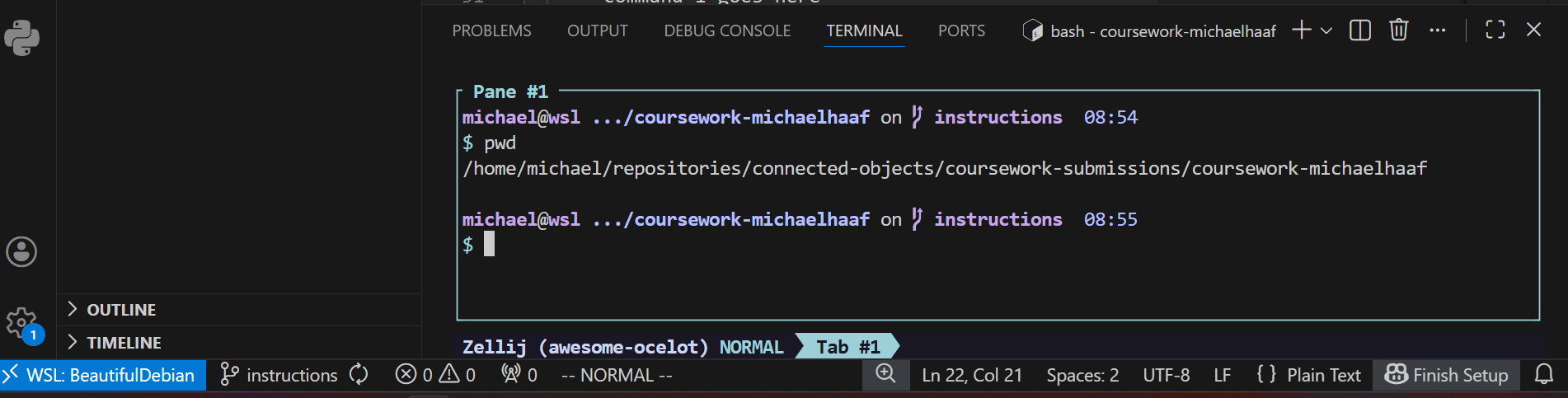
Note the bottom left (remote connection): blue, WSL:Debian. Note the console: the repository location is in /home/username, NOT in /mnt/c/...#
After Lab 2#
If any of the commands below do not give the expected output, fix them using the Lab 2 instructions.
# Verify you can see your reTerminal on tailscale
tailscale status

# Verify you can ssh into your reTerminal environment
ssh <reterminal-username>@<reterminal-hostname>
# Verify you can see your developer environment on tailscale
tailscale status

# Verify your reTerminal python is >=3.9 and pip is installed
python --version
pip --version