
Azure Portal Setup#
Getting started with Azure#
These notes cover the basics for setting up your Azure account, and the main Azure resource we will use in class, the IoT Hub.
Creating an account#
If you have not already, create an Azure account using your student email.
Otherwise, log in to your azure account at https://portal.azure.com
Account cost overview#
The Azure services we need for this course (creating an IoTHub Resource group and sending messages) are free to use, within a daily message limit (~8000).
This means that we need to take care to either use student credits, or ensure we have a budget-warning system in place, to prevent incurring unnecessary costs.
Note that John Abbott students get $100 of credit for 12 months. After 12 months, or when your student credit runs out, you have two options:
upgrade your account to “pay-as-you-go”
Pay-as-you-go is will still be free for our course, as long as you set up a budget alert in case you exceed the free-usage-limits
create a new non-student account using a non-student email address, comes with $200 credit
In the big picture, no matter what your situation is, your Azure plan should have the following properties:
No upfront costs – your account should be free to create, and every service/resource you create should be free to create.
No monthly costs – your costs should be covered entirely by one of the following:
your student account credit
$200 free credit for
pay-as-you-go that is free per month, but will charge your credit card per usage beyond the threshold of free tools.
A budget alert system that warns you when your usage exceeds >$5 . Even if you are in situation 2.3 (pay-as-you-go free services), you should not expect to pay more than a couple dollars. See the Setting budget alerts section.
See the FAQ section if you have further questions.
Managing your account#
Below are some useful account management how-tos.
Checking your balance#
As you experiment with Azure you might want to know your current balance.
Sign in to the Azure portal
Search for Cost Management
Select Payment methods
Check your Azure credits panel.
For more details, see Track Microsoft Customer Agreement Azure credit balance
Setting budget alerts#
It’s possible to setup email alerts when your Azure spending exceeds a certain threshold. This avoids unexpected spending of Azure credits.
In the Azure Portal Home, select the Resource groups service.
Select the resource group you want to monitor with a budget.
In the left panel, select Budgets under the Cost Management group and select Add.
Give your budget a name and an amount.
Select the percent spending for the alert and the email to receive the notification.
Click Create.
Using the tool#
Below are some how-tos for services we will be using in this class.
Documentation#
The Azure resource we will be using the most, IoT Hub, has complete documentation/how-to-guides/tutorials at https://learn.microsoft.com/en-us/azure/iot-hub/.
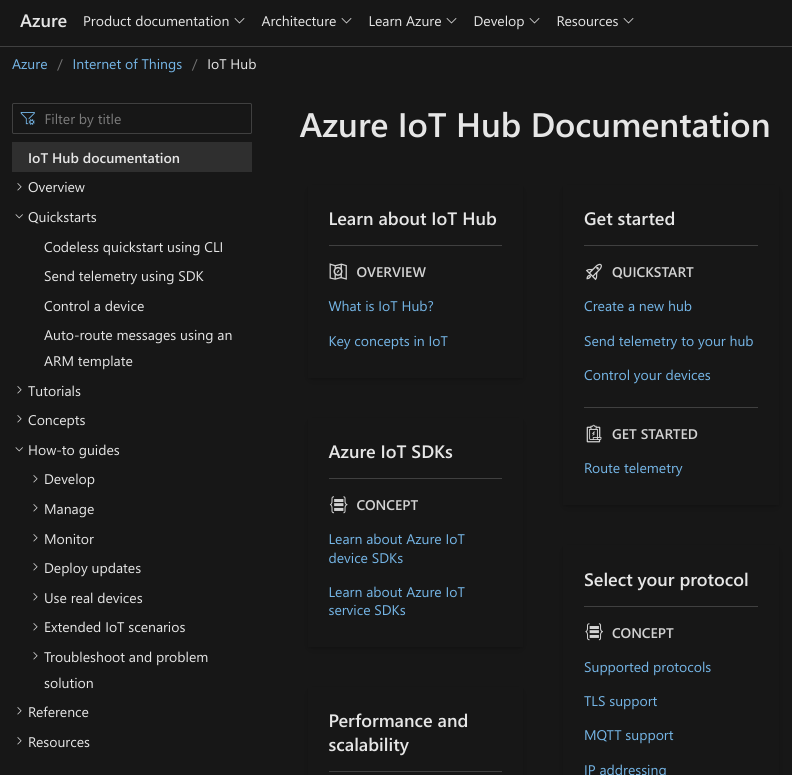
Familiarize yourself with the left-hand menu, including the “Quickstarts” and “How-to guides”.
Creating an IoT Hub Resource#
There are two ways to create resources in Azure:
using the Azure portal website: https://portal.azure.com
using Azure CLI
The Azure documentation typically has instructions for both methods in all their tutorials – you can select which method you want to choose by clicking the tabset button for it:
Create and manage Azure IoT Hubs using Azure Portal.
Note that each section has the “Azure Portal” option selected.
Create and manage Azure IoT Hubs using Azure CLI.
Note that each section has an “Azure CLI” option selected.
No matter which method you choose, you should make sure the resource you’re making is free and in a nearby region.
Suggested choices for the following options:
Subscription: Your active subscription (probably “Azure for Students”)
Resource group: Create ONE resource group for this class (any name is fine)
IoT hub name: Recommended: yourname-iot-hub
Region: Central US or East US or Canada East
Tier: Free
Daily message limit: 8,000 ($0/month)
You can keep the defaults for all subsequent menus (Networking, Management, Add-ons, Tags).
Once you’re done creating your IoT Hub, it should appear in your Azure portal. See the figure below:
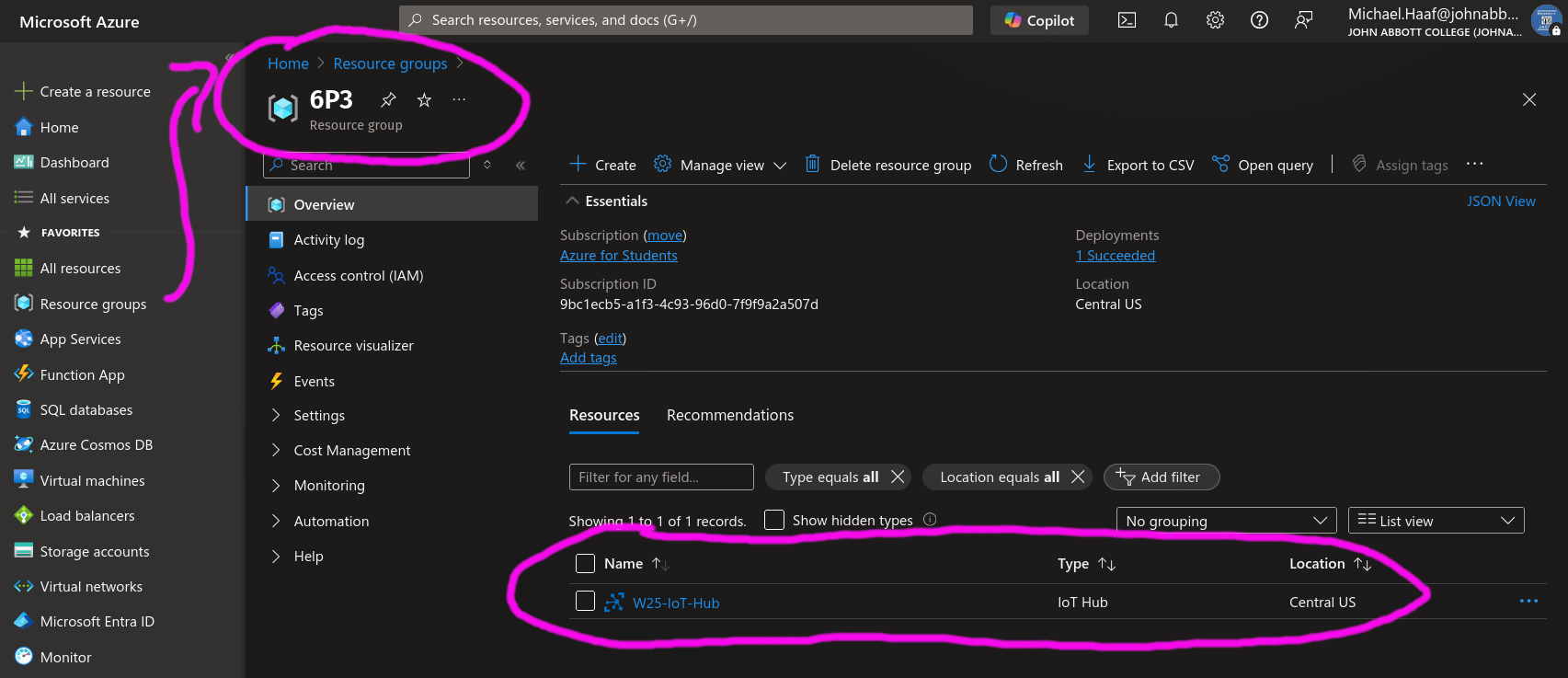
In this figure, the Resource Group is named 6P3, and a IoT Hub Resource named 6P3-IoT-Hub can be seen in the list of its resources. You can view your resource groups on Azure Portal by clicking on the “Resource groups” menu item on the left.#
FAQ#
Q: I’m not eligible for a student account?
Student accounts last for 12 months – if you have taken courses in the past that require an Azure account, and it was more than 12 months since you created that account, your student credits have unfortunately expired.
See What happens after I use my $100 credit or when I’m at the end of 12 months?
Q: I’m not eligible for the $200 free account credit for my non-student account?
The $200 credit is only available if you have not used that email address for an Azure account in the past (and it only lasts for one month).
If you are not eligible for the $200 credit on the email address you have provided, you have two choices, both of which are fine:
use a new email address
register for a free-tier pay-as-you-go.
Q: I tried to register for the pay-as-you-go and I’m told it costs $35 per month?
The pay-as-you-go account should not cost any upfront or monthly charges. Double check that you do not select options like “tech support plans” or “standard-tier service” – ALWAYS opt out of any paid options, ALWAYS select free-tier for any choices provided to you by Azure.
Q: if I’m on free-tier and there’s no monthly costs, why do I need to monitor the budget?
The pay-as-you-go account may charge your credit card, only when you use the service beyond the defined free-tier limits.
In our class, we will have IoT Hub services that handle communication between your Mobile App from App Dev III, and your reTerminal devices from Connected Objects. The free-tier limit for the IoTHub is 8000 messages per day – I don’t think there will be a reason to exceed this, so by default, you may never have to pay any money for this service.
However, there may be small charges to your credit card, ONLY IF you exceed the free-tier limits of the services we use. These charges will be small, but it is possible for them to get out-of-hand by accident. To make sure they do not get out of hand by accident, you must set up a Budget for your Resource Group to alert you when charges exceed a certain number. Please review the course notes about budgets and set up an alert if you have not done so.
Q: I have some other question?
Please let me know if you have any questions, or if there’s something else that doesn’t seem to work. I will update these instructions if there are more troubles you run into that I can share answers for.