
Azure Features#
Platform as a Service (PaaS)#
So far in this course, we have developed applications that are almost entirely local to our reTerminal (production) and workstation (development) environments.
We did not worry ourselves about data storage, application logic, authentication, etc. We could implement these things locally in Python, but we can also automate many of them using a PaaS framework.
Platform as a service (PaaS) is a complete development and deployment environment in the cloud:
Infrastructure: servers, storage, and networking,
Platforms: development tools, business intelligence services (BI), database management systems, and more.
It’s really a reduced version of Software as a service (which you may be more familiar with), allowing the flexibility to write customized application/device software while benefitting from infrastructure and analysis services.
See the graphic below:
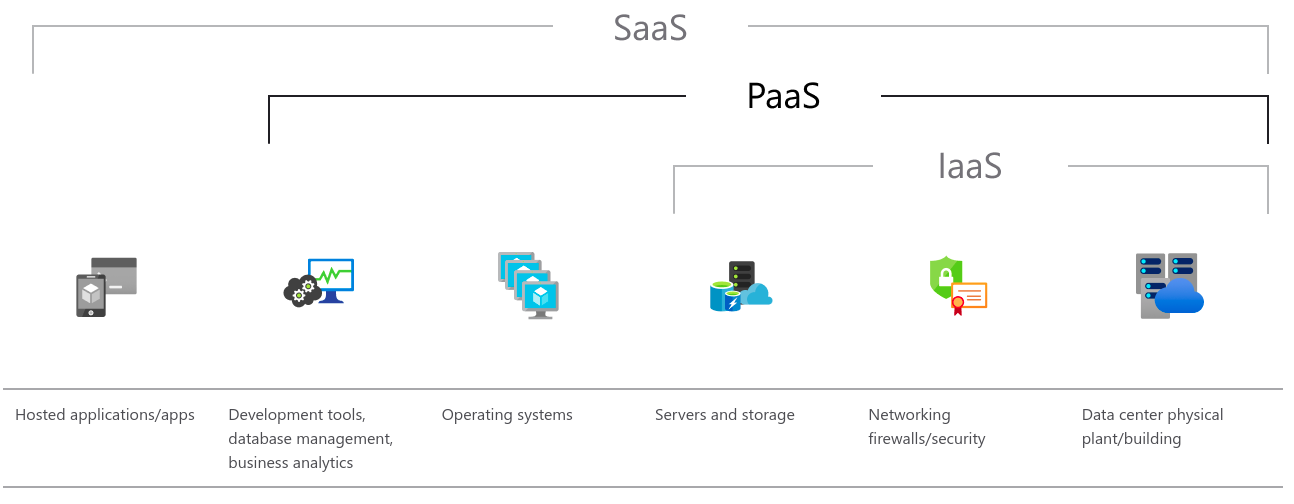
Compasion of SaaS, PaaS and IaaS platforms. Figure from: SaaS vs PaaS vs IaaS, Microsoft.#
PaaS is designed to support the complete application life-cycle: building, testing, deploying, managing, and updating – while giving the developer flexibility to implement the actual services themselves.
See more in What is PaaS (azure.microsoft.com)
IoT Subsystems#
We can breakdown an IoT solution into subsystems and explore how information flows between them:
IoT Devices: The physical devices and sensors where data originates.
Cloud Gateway: The Cloud Gateway provides a cloud hub for secure connectivity, telemetry, event ingestion and device management (including command and control) capabilities.
Stream Processing: Processes large streams of data records, evaluates rules for those streams, and further routes the data.
Storage: Storage can be divided into warm path (data that is required to be available for reporting and visualization immediately from devices), and cold path (data that is stored longer term and used for batch processing).
User Interface and Reporting: The user interface for an IoT application can be delivered on a wide array of device types, in native applications, and browsers.
Business Process Integration: Facilitates executing actions based on insights garnered from device telemetry data during stream processing. Integration could include storage of informational messages, alarms, sending email or SMS, integration with CRM, and more.

Diagram that shows the core subsystems of the Azure IoT reference architecture. Figure from: Subsystems of IoT architecture, Microsoft.#
We will use Microsoft Azure to manage each sub-system individually.
Azure IoT Services#
Azure offers many IoT-related services (see image below). In this course we’ll only explore a few.
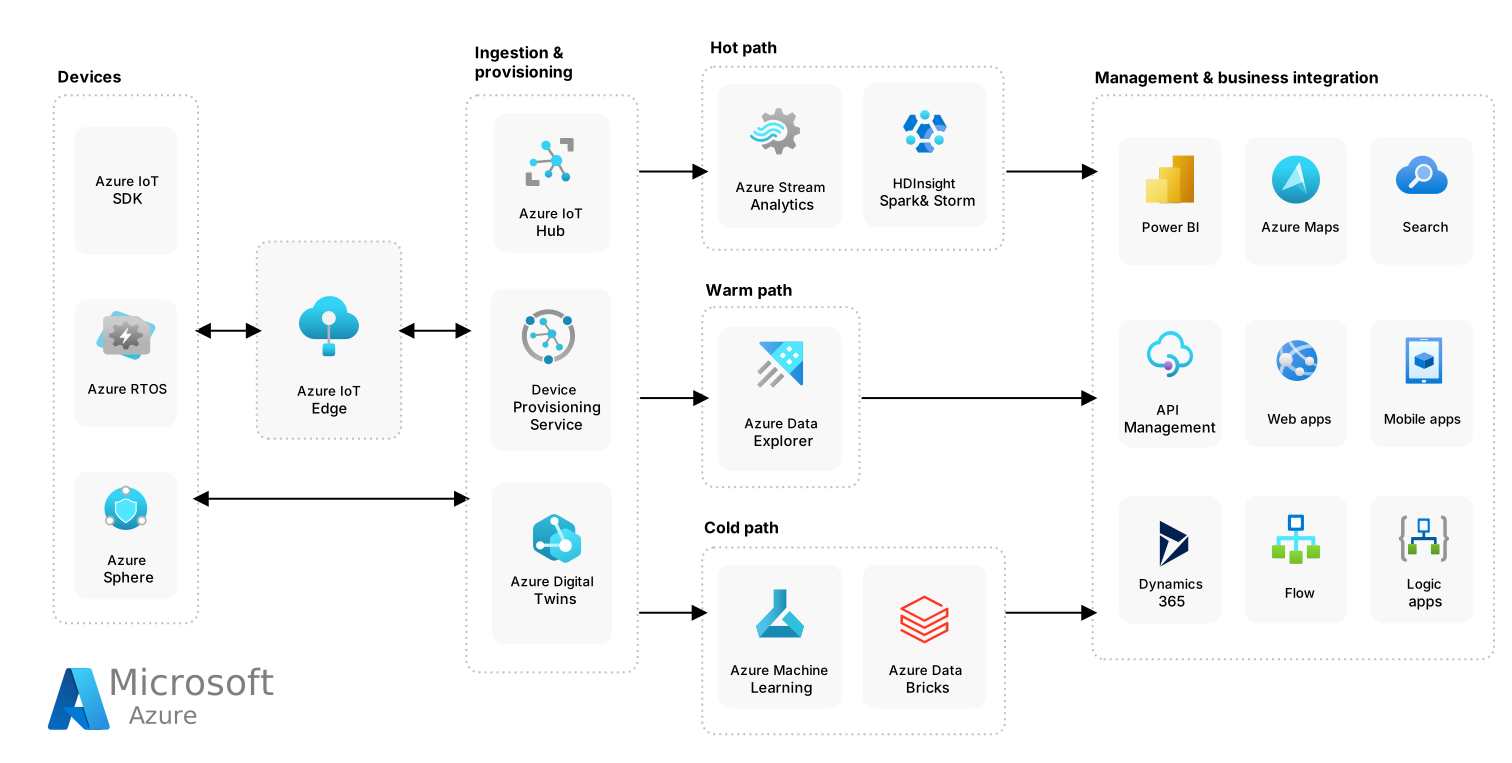
Azure IoT-related architecture. Data will flow from to/from your reTerminal (Devices), to/from the Azure IoT Hub (Ingestion & provisioning), to/from Azure Data Management (Warm path), to from your .NET mobile app (M&B integration). Figure from Microsoft Learn.#
IoT Hub & IoT Central#
Microsoft Azure has two service offers for deploying and managing IoT systems: IoT Hub and IoT Central.
The page Overview: Connection options for Azure IoT device developers offers a great summary and comparison between IoT Hub and IoT Central.
IoT Central#
Azure IoT Central is a software-as-a-service (SaaS) application that provides a complete platform for hosting IoT applications. Its main feature is a web UI that streamlines the lifecycle of creating and managing IoT applications.
The web UI simplifies the tasks of creating applications, and connecting and managing from a few up to millions of devices.
This service has a limited free plan (2 devices with 5000 messages per month). Pricing available here.
See official site for details or watch the walk-through for an example.
We will not use IoT Central in this course because we’ll connect the underlying Azure services ourselves.
IoT Hub#
Azure IoT Hub is a platform-as-a-service (PaaS) application that also provides a platform for hosting IoT applications. IoT Hub acts as a central message hub for bi-directional communication between IoT applications and connected devices.
IoT Hub offers greater control and customization over your application design, and more developer tool options for working with the service. However, it requires more development time and slightly more management complexity.
This service also offers a more generous free plan (500 devices with 8000 messages per day).
See official site for details and pricing.
We will use IoT Hub in this course.
Azure Resource Groups & Zones#
To use Azure IoT Hub, we need to creaet Azure resource groups.
An Azure resource group is a “container” that holds related resources for an Azure solution (such as an IoT Hub).
The resource group can include all or a subset of the resources for the solution. You decide how to allocate resources to resource groups based on what makes sense for your organization. Generally, group resources share the same lifecycle (deploy, update, and delete).
Azure Regions#
Azure resources and their groups must be deployed to a particular region.
Azure operates in multiple datacenters around the world. These datacenters are grouped in to geographic regions.

Azure infrastructure map. You can find a current list of all Azure regions at the Zzure geographies web tool. Figure from Map of Azure Regions, Thomas Poppelgaard, 2017.#
Canada has two Azure regions:
Canada Central: located in Toronto (with 3 zones).
Canada East: located in Quebec City (no zones).
The US has a few nearby regions as well, in particular:
Central US: allows the use of advanced IoT features still in testing.
Azure IoT Dev Tools#
Azure offers several developer tools to create, manage and connect to the IoT Hub service. We’ll be using two: the Azure Portal, and the Azure CLI.
There’s also a few extensions worth noting.
Azure Portal#
The Azure Portal is a browser-based portal for IoT Hub and devices.
- Documentation
- Quick Start
- IoT Example
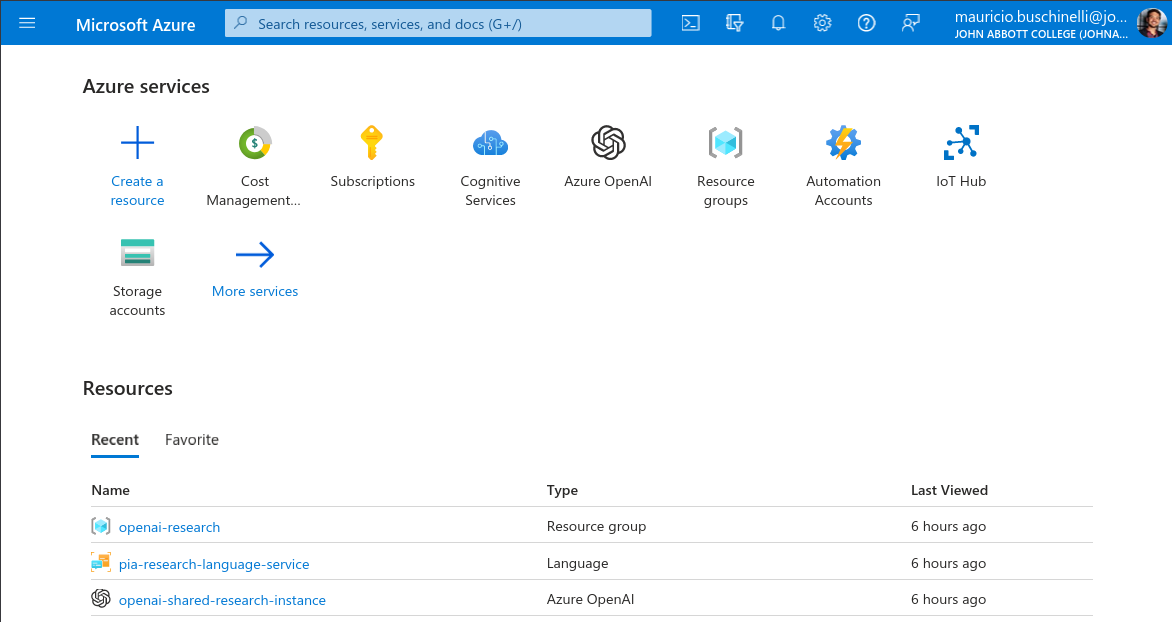
The Azure Portal at https://portal.azure.com is a web app that can access and modify all of your IoT Hub data/configurations/actions/etc.#
Metrics#
One very useful feature of Azure Portal is the data analysis and presentation software that comes built-in.
Without any extra configuration, all IoT commands and actions are logged and stored on the Azure Portal, and visualizations of data usage can be easily displayed for verification/debugging/analysis.
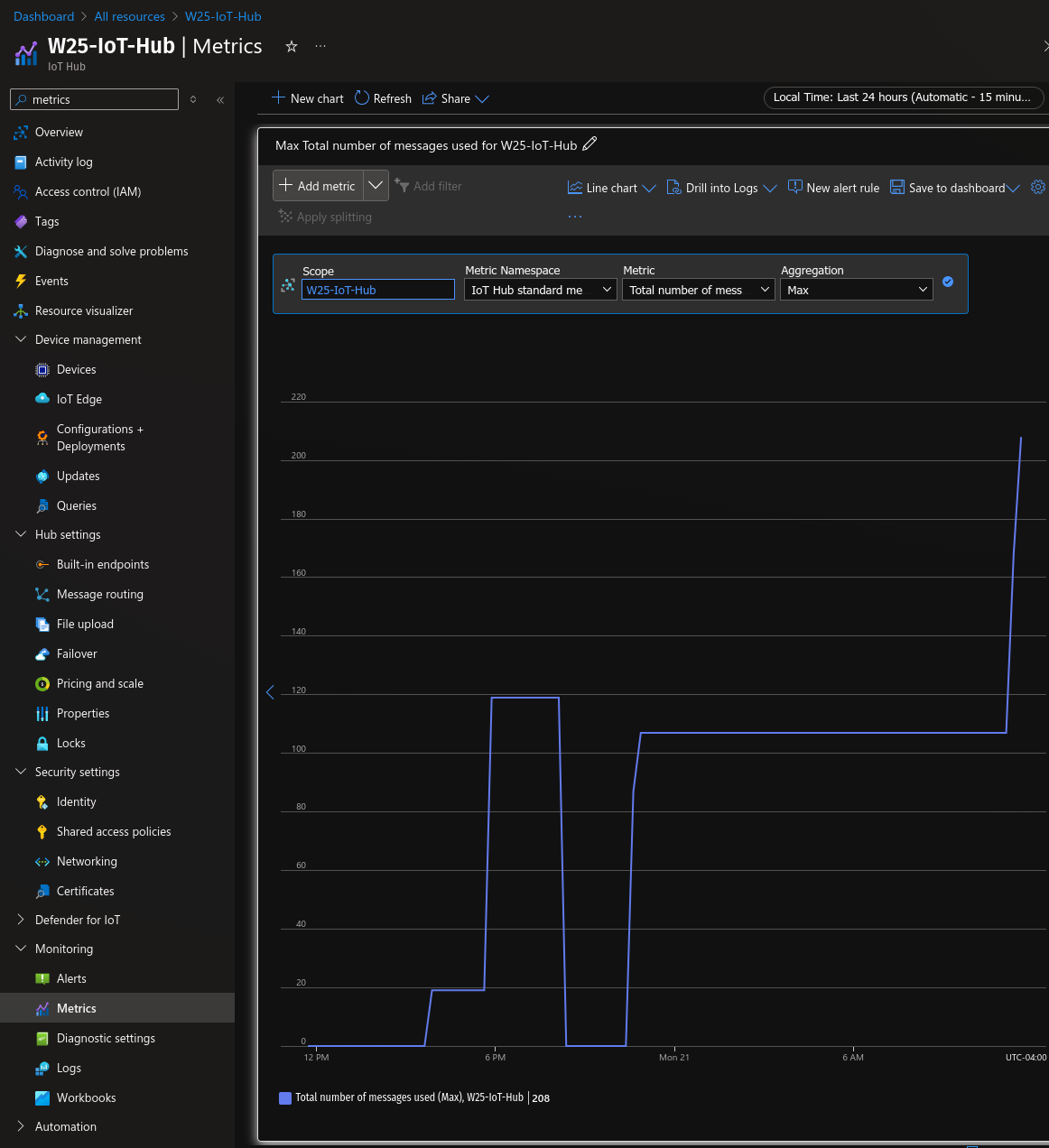
An example of the Azure Metrics portal page. You can easily verify that the daily number of messages you’re sending is below the Free Tier limit of 8000 by checking this page when using your IoT Hub devices.#
To find the metrics page for a given Azure resource, do the following:
In the left navigation menu on the Azure portal, select All Resources.
Select the link on your IoT hub.
Select Monitoring in the left pane of your IoT Hub, and find the Metrics submenu.
In the Scope field, enter your IoT hub name.
In the Metric Namespace field, select IoT Hub Standard Metrics.
In the Metric field, select the desired metric.
Hover your mouse pointer over the chart to see detailed information at a given time.
Azure CLI#
Azure CLI is a terminal tool to manage Azure services offered as Bash and PowerShell shells.
Warning
An old version of this document recommended using the official installation instructions.
Unfortunately, these methods (using apt) depend on unmaintained packages. Instead, install azure-cli in a python virtual environment as described below.
- Documentation
- Installation
azure-cliis a python package we can install in a virtual environment:
If you’re having issues installing azure-cli, make sure your system python is up to date.
Revist the course notes for installing developer environment dependencies,
and make sure your system packages and python libraries are up to date.
Then, delete your existing virtual environment and recreate it with the updated python.
# Create a venv if you do not have one already
$ python -m venv .venv
(.venv) $ source .venv/bin/activate
# Install dependencies and azure-cli
(.venv) $ pip install uamqp
(.venv) $ pip install azure-cli
If you are having errors installing uamqp, try the following:
(.venv) $ export CFLAGS="-Wno-error=incompatible-function-pointer-types"
(.venv) $ export CMAKE_POLICY_VERSION_MINIMUM=3.5
(.venv) $ pip install uamqp
You can later add these packages to a requirements.txt or pyproject.toml file for projects where you use these tools regularly.
- Quick Start
- IoT Example
Azure CLI IoT extension#
Azure CLI has a variety of installable extensions to manage different Azure services.
The Azure IoT extension gives us access to the az iot subcommand – a very
convenient CLI for controlling IoT-related sevices.
- GitHub Repo
- Documentation
Some tutorials for reference#
We cover these tutorials in Lab 6, but here they are again for reference: