
Linux basics#
What is WSL?#
These notes are adapted from https://learn.microsoft.com/en-us/windows/wsl/about and https://learn.microsoft.com/en-us/virtualization/windowscontainers/about/containers-vs-vm
Windows Subsystem for Linux (WSL) is a feature of Windows that allows you to run a Linux environment on your Windows machine, without the need for a separate virtual machine or dual booting.
The following sections compare/contrast containers and VMs.
Container architecture#
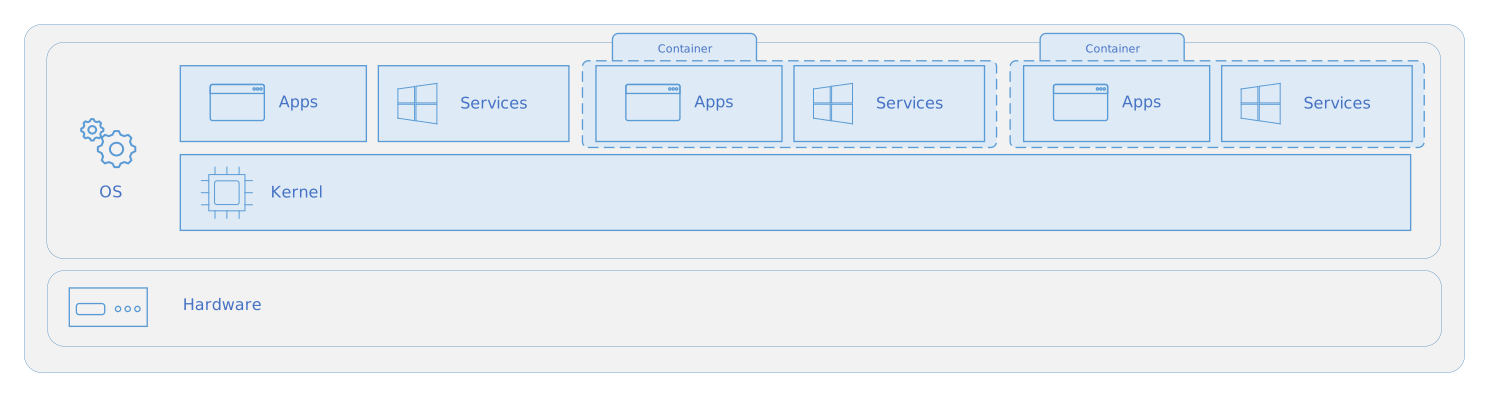
A container is an isolated, lightweight silo for running an application on the host operating system. Containers build on top of the host operating system’s kernel (which can be thought of as the buried plumbing of the operating system), and contain only apps and some lightweight operating system APIs and services that run in user mode, as shown in this diagram.
Virtual machine architecture#
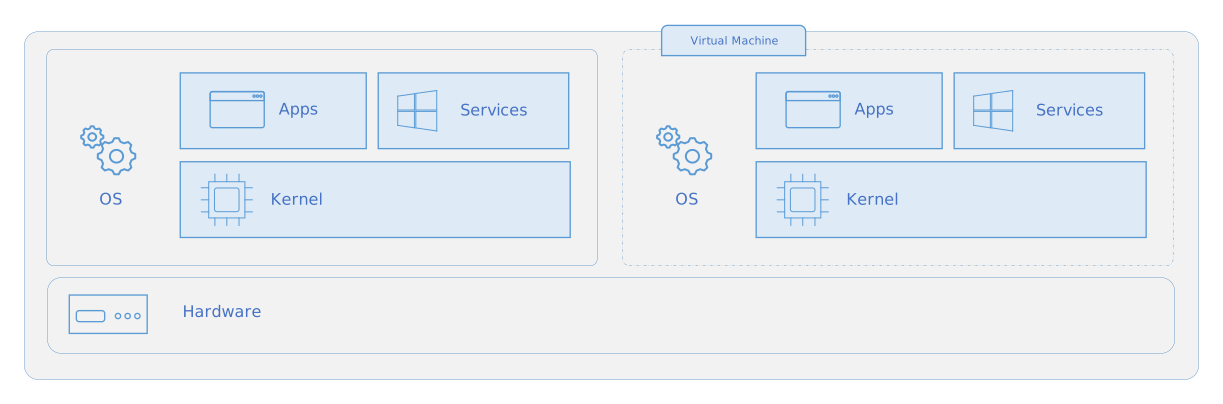
In contrast to containers, VMs run a complete operating system–including its own kernel–as shown in this diagram.
Linux Filesystem Hierarchy Standard (FHS)#
These notes are adapted from https://en.wikipedia.org/wiki/Filesystem_Hierarchy_Standard
Raspberry Pi OS and Debian#
The Raspberry Pi OS (previously called Raspbian OS) used in the reTerminal is a variation of the Debian OS, with optimizations for the Raspberry Pi hardware.
Debian OS is one of the most commonly used Linux distributions, especially as the “base” for derivative distributions. There are over 100 derivatives of Debian, many of which are themselves very popular distributions. These include:
Desktop distributions like Ubuntu, Linux Mint, elementaryOS;
Special-purpose distributions Kali Linux and Backbox (penetration testing)
Server/Hypervisor distributions like Proxmox, Ubuntu server,
Many others, you can find a more complete list here
Debian-derived distributions share the following:
the
.debpackage formatthe
dpkgpackage manager and its frontendapt
For that reason, many of the commands and configuration for Raspberry Pi OS can be taken directly from Debian’s documentation.
Apt: Debian Package Manger#
The command apt is the default package manager of Debian.
A package manager is a software tool responsible for automating the installation, removal, configuration and removal of computer programs.
Managing packages could technically be done manually, however, it is very time consuming and error prone: tracking package dependencies and compatibility with the current system.
Common apt commands#
There are many apt commands you will find yourself using all the time on a
Debian-based OS like Raspberry Pi. It’s worth knowing in a bit more detail how
they work.
Note: Online, you will often see apt-get used instead of apt. apt is a
newer package manager API meant to replace the older API apt-get. However,
they both do more or less the same things the same ways, and apt is a
backwards compatible replacement for apt-get in all cases. See
Debian docs
for details.
During Lab 1, you updated, upgraded and installed some packages in the Raspberry
Pi OS using apt:
Command |
Description |
|---|---|
|
Update list of available packages |
|
Upgrade the system by installing/upgrading packages |
-
apt: the difference between
updateandupgrade{.striped .hover .column-body-outset-right}
Combined, these two commands update and upgrade all of the currently operating system packages on your system:
$ sudo apt update && sudo apt upgrade -y
There are a few other apt commands worth knowing.
Command |
Description |
|---|---|
|
list packages installed on your system based on package names. |
|
Returns all repository packages search in package descriptions |
|
show package details |
|
install packages |
|
reinstall packages |
|
remove packages |
-
apt: a variety of other commands I find myself using now and again {.striped .hover .column-body-outset-right}
You can see details about all of these commands and more by running
apt --help. Note: documentation will often leave out sudo since the need to
run sudo depends on the machine and the user.
In general, commands that read data (
apt list,apt search, etc.) will generally not requiresudo, since most folderst thataptwill touch are universally readable.
aptcommands that write data (apt install, etc.) to a folder not owned by the current user – which is most folders outside of/home/username, but particularly common package install locations like/usr,/bin, etc. – these commands will requiresudoto gain the required write permission
Apt source repositories explained#
This section has been adapted directly from the Debian documentation: see SourcesList
Apt downloads packages from one or more
software repositories (sources) and
installs them onto your computer.
A repository is generally a network server, such as the official DebianStable repository. Local directories or CD/DVD are also accepted.
The specific repositories (package sources) configured on your machine affect: - What software packages are available for download - What versions of packages are available - Who packages the software
Commonly used package sources#
DebianStable: official Debian repository for the current releaseStableProposedUpdates: official Debian repository for upcoming point releases (security and important bug fixes every ~2 months)StableUpdates: official Debian repository for changes that cannot wait for the next point release, packages are also added to StableProposedUpdates for inclusion in the next point releaseDebianSecurity: official Debian repository for frequent security updatesDebianBackports: more recent versions of some packages, compatible withDebianStable.DebianUnstable: rolling development version containing the latest packagesDebianExperimental: development version containing the experimental/alpha/beta/untested packages
Editing Software Sources#
Being able to change the repositories used by your package management system is a powerful feature but this power comes with some responsibility.
Users are cautioned that it is possible to break your system (in a way that could be difficult or impossible to cleanly fix) by adding third-party repositories, or repositories for a Debian version that does not match your current version - these repository create a risk of conflicting package versions, creating what’s sometimes called a “Franken-Debian” system.
The whole concept behind a Debian stable release is that the Debian developers have picked a set of software and their versions that function nicely together. While this software is patched to fix security issues, the software is frequently not the latest version. It takes some experience to know how the repos may be changed without risk of breaking your system. Users of all levels are advised to change repos cautiously.