
Device Twins#
For each device that you connecte to IoT Hub, Azure IoT Hub maintains a device twin:
Device twins are JSON documents stored online that contain information about the state of a device, including metadata, configurations, and conditions.
Device twins store device-related information that:
Contains device metadata from your solution back end.
Reports current state information such as available capabilities and conditions.
Synchronizes the state of long-running workflows, such as firmware and configuration updates, between a device app and a back-end app.
Note that Device Twins are not appropriate for high-frequency communication such as sending telemetry data from device to cloud. For this, use D2C messages (see the course notes about device-cloud communication).
Device Twin Anatomy#
The device twin JSON document has the following structure:
Device identity properties#
Read-only properties from the corresponding device identity.
Desired properties#
Used along with reported properties to synchronize device configuration or conditions.
The solution back end can set desired properties, and the device app can read them.
The device app can also receive notifications of changes in the desired properties.
Reported properties#
Used along with desired properties to synchronize device configuration or conditions. The device app can set reported properties, and the solution back end can read and query them.

Structure of a Device Twin Json document Understand and use device twins in IoT Hub.
Notice how the back-end has read/write access to the Desired properties but only has read access to the Reported properties.
The inverse is true for the device app.
The following example shows a device twin JSON document:
{
    "deviceId": "devA",
    "etag": "AAAAAAAAAAc=",
    "status": "enabled",
    "statusReason": "provisioned",
    "statusUpdateTime": "0001-01-01T00:00:00",
    "connectionState": "connected",
    "lastActivityTime": "2015-02-30T16:24:48.789Z",
    "cloudToDeviceMessageCount": 0,
    "authenticationType": "sas",
    "x509Thumbprint": {
        "primaryThumbprint": null,
        "secondaryThumbprint": null
    },
    "version": 2,
    "tags": {
        "$etag": "123",
        "deploymentLocation": {
            "building": "43",
            "floor": "1"
        }
    },
    "properties": {
        "desired": {
            "telemetryConfig": {
                "sendFrequency": "5m"
            },
            "$metadata" : {...},
            "$version": 1
        },
        "reported": {
            "telemetryConfig": {
                "sendFrequency": "5m",
                "status": "success"
            },
            "batteryLevel": 55,
            "$metadata" : {...},
            "$version": 4
        }
    }
}
High-level Flow#
The use of Device Twins typically involves the back-end application trying to update the state of a device.
In this case we have the following information flow:
A desired property is set by a back-end application into the IoT Hub.
The desired property is read by a device.
The device processes the desired property.
The device sets a reported property into the IoT Hub.
The device’s reported property is read by the back-end application.
Notice that a tag can be set by a back-end application and is never sent to the device. Tags are used to organize and query devices.
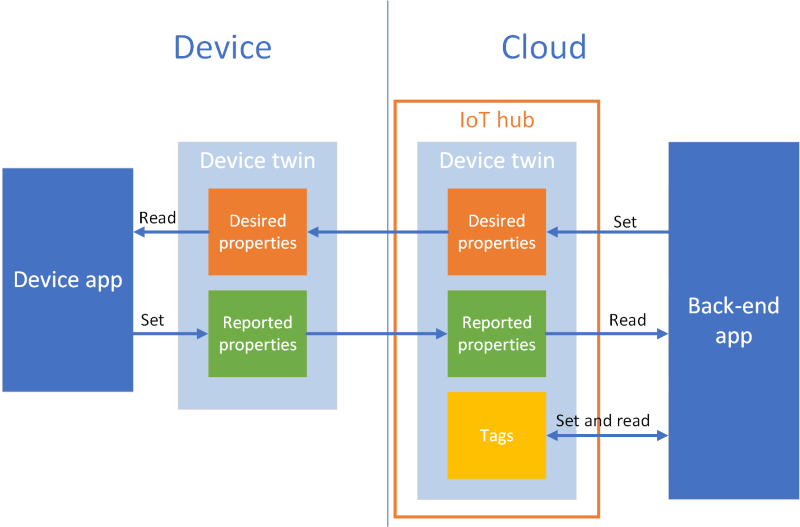
Information flow for a desired property change from a back-end app Tutorial: Configure your devices from a back-end service.
Desired Properties Example#
Consider the property telemetryConfig which is used to configure telemetry
collection on the device.
Information Flow#
Step 1: The solution back-end sets the desired property with the desired configuration value. Below is the portion of the document with the desired property:
"desired": {
    "telemetryConfig": {
	    "sendFrequency": "5m"
    },
	... other properties and metadata if applicable ...
},
Step 2a: If the device is connected, it is notified of the change immediately.
Step 2b: If the device is not connected, it must follow the device reconnection flow to receive the full desired properties document and to subscribe to new notifications.
Step 3: The device parses the desired property and triggers an action according to the application logic.
Step 4: The device reports the updated configuration as a reported property
(or an error condition using the status property). Below is the portion of the
document with the reported property:
"reported": {
    "telemetryConfig": {
        "sendFrequency": "5m",
        "status": "success"
    }
    ... other properties and metadata if applicable ...
}
Step 5: The back-end reads and tracks the results of the configuration operation.
Note that a back-end service can set and track device twin properties across many devices at once by querying device twins (more on querying later).
Device Implementation#
An excellent tutorial is provided in Get started with device twins (Python) - Create the device app
Additionally, there are two examples in the Github repository (use
v2branch):
azure-iot-sdk-python/azure-iot-device/samples/sync-samples
Implementation Summary#
Install the Azure IoT Hub Device SDK for Python.
pip install azure-iot-device
Import the class
IoTHubDeviceClient.
from azure.iot.hub import IoTHubDeviceClient
Instantiate a
IoTHubDeviceClientfrom the Device connection string and connect to the IoT Hub.
device_client = IoTHubDeviceClient.create_from_connection_string(conn_str)
device_client.connect()
Define a callback function for newly received Device Twin updates (patches).
def twin_patch_handler(twin_patch):
    print(f"Twin patch received: {twin_patch}")

device_client.on_twin_desired_properties_patch_received = twin_patch_handler
Get the Device Twin document from the device instance and parse it if connecting for the first time (see the device reconnection flow).
twin = device_client.get_twin()
Parse your twin update by inspecting the requested properties.
This is were the magic happens 🧙
⚠ Remember that any property starting with “$” is set by Azure. You cannot set or modify them. Trying to do so will result in an error.
Prepare your Reported Properties dictionary and send it to the IoT Hub
reported_patch = {"telemetry_interval": 20}
device_client.patch_twin_reported_properties(reported_patch)
Disconnect the client.
device_client.shuthdown()
Back-end Implementation#
An excellent tutorial is provided in # Get started with device twins (.NET) - Create a service app
Shared Access Policy#
The connection string for the Device Twins back-end operations requires a specific shared access policy that has the permissions to:
Registry Read
Service Connect
This is not your Event Hub compatible endpoint connection string.
See image below for setting up a new shared access polity:
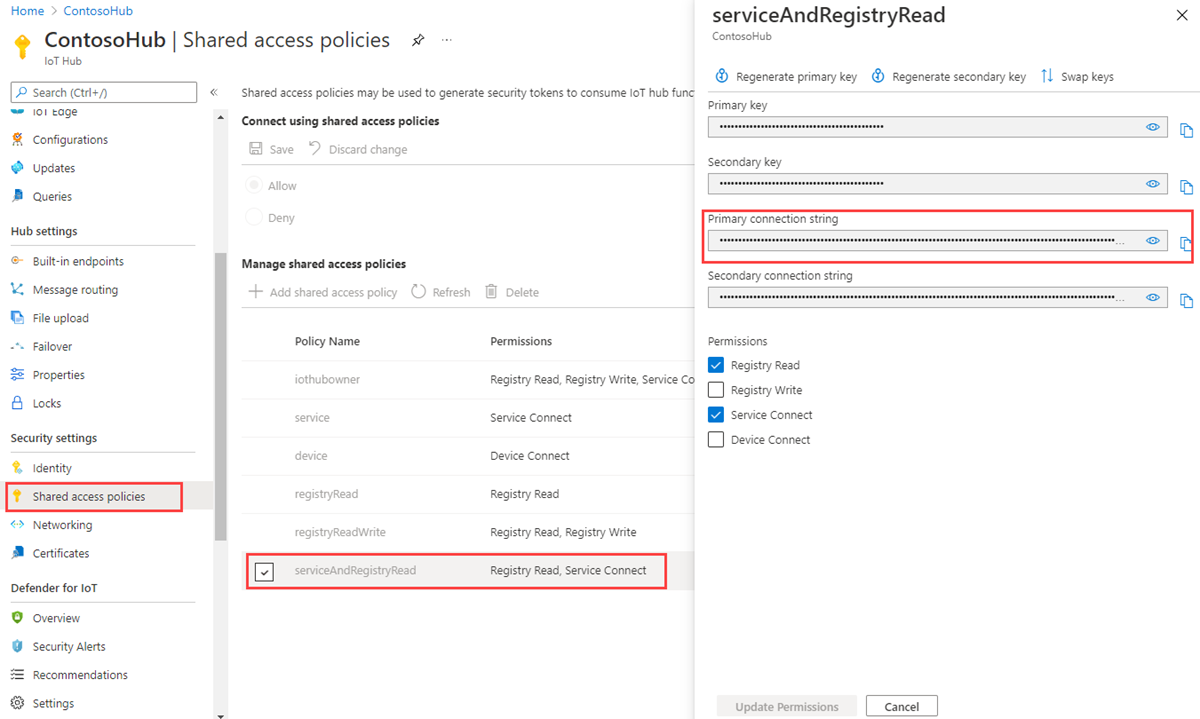
.NET Service Client for Device Twin Updates#
The .NET Azure IoT SDK includes two clients for device twin operations:
DigitalTwinClient(recommended but slightly more complex)RegistryManager
SDK references:
.NET Class |
Documentation |
GitHub Samples |
|---|---|---|
DigitalTwinClient |
service/samples/ solutions/DigitalTwinClientSamples/Thermostat/ |
|
RegistryManager |
service/samples/ how to guides/RegistryManagerSample |
Notes:
The Twin class has the properties
Twin.Properties.DesiredandTwin.Properties.Reported, which returns aTwinCollection Class.TwinCollectionclass has helper methods to access and manipulate Device Twin properties.
References#
Most of the content in this lesson was extracted from:
Understand and use device twins in IoT Hub by Microsoft Docs.
Get started with device twins (Python) by Microsoft Docs.